
The phone rings, notifications vibrate in your pocket, the charging LED lights up, but the screen remains stubbornly black. This scenario regularly affects Samsung Galaxy owners, and the good news is that the smartphone is still working. The key question is whether the problem lies with the software or the display panel, because what you do next depends entirely on the answer.
Black screen after a Samsung update: rule out the software trap first
Let’s start with the most misleading case, because it looks like a hardware failure when it isn’t. When a Galaxy displays a black screen just after an Android or One UI update, the cause is often a conflict between temporary files and third-party apps. Samsung acknowledges that app incompatibilities can cause the display to freeze after new firmware is installed.
The first thing to try is a forced restart: hold Volume Down + the side button for 10 seconds. If the screen comes back on, the problem was an isolated crash related to the update. Nothing serious, but consider uninstalling any apps you installed just before the incident.
If a forced restart makes no difference, try Recovery mode. Turn off the phone, then hold Volume Up + the side button until the Samsung logo appears, followed by the Recovery menu. From this menu, the “Wipe cache partition” option clears temporary files without affecting your personal data. This step resolves a significant number of black screens that occur after an update. A Samsung with a black screen but still working after an update often comes back to life with this simple procedure.
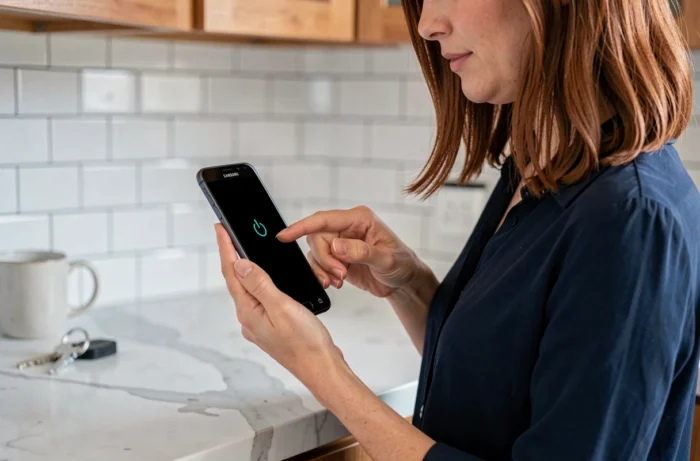
AMOLED panel or disconnected flex cable: identify a hardware failure on a Galaxy
Samsung Galaxy phones use AMOLED panels, where each pixel produces its own light. There is no separate backlight as there is with an LCD screen. When the panel or its connecting flex cable fails, the screen goes completely black even though the rest of the phone works normally.
Here are a few simple clues to help distinguish this scenario from a software bug:
- A forced restart and Recovery mode display absolutely nothing—not even the Samsung logo on startup.
- When you connect the phone to a PC, the computer detects it and offers access to its storage.
- When you call the number from another phone, it rings, and you can answer using the side button or Bluetooth headphones.
If all three points check out, the motherboard, memory, and battery are working. Only the display subsystem is out of service. The fault is localized, which is reassuring for what comes next.
Impact, hairline crack, or flex cable: what can break without visible signs
An AMOLED screen can break internally without any visible cracks on the outer glass. A fall onto a corner, prolonged pressure in a tight pocket, or simply wear and tear on the flexible cable connecting the panel to the motherboard can be enough. We regularly see Galaxy phones with intact glass but a permanently dead display.
The ambient light sensor can also be misleading. If it malfunctions, the screen dims to its lowest brightness and appears black. Before concluding that the panel has failed, go into a dark room and look carefully to see whether a very faint image appears. If it does, turn off auto-brightness from Recovery mode or connect the phone to an external display using a USB-C to HDMI adapter.
Back up your data when your Samsung screen is black
It’s easy to overlook at the worst possible time, but this should be your top priority before any repair. Samsung warns that data may be erased during a repair unless Maintenance mode is enabled. The problem is that enabling this mode requires access to the settings, which is impossible with a black screen.
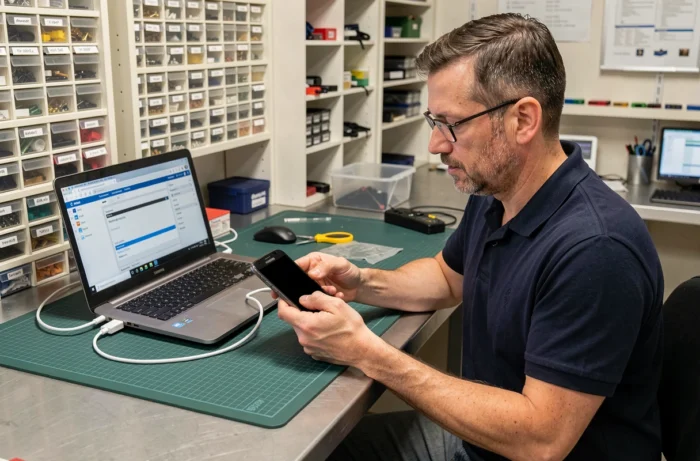
The most reliable solution is to connect the phone to a computer via USB. If the phone is unlocked (or USB debugging was enabled), you can access the internal storage and copy your photos, videos, and documents. Smart Switch, Samsung’s transfer software, can also run a full backup from a PC, provided the phone is recognized.
- Connect the Galaxy to your PC using a certified USB-C cable (not a cheap charging cable).
- Check whether the computer plays a connection sound or displays the device in File Explorer.
- If the phone asks you to confirm access on the screen, try navigating blindly: tapping the center of the screen often confirms the dialog box.
- Launch Smart Switch on your PC and try an automatic backup.
Whether this works depends on the lock status and the exact model. On some recent Galaxy phones, USB transfers require touchscreen confirmation, which is impossible without a working display, blocking the process.
Galaxy screen repair: what to expect from an authorized versus independent repair shop
Once you’ve confirmed that the display panel has failed, you need to decide where to get it repaired. Samsung offers an official repair service, either at an authorized service center or by mail. The main advantage is a warranty on parts and labor, with genuine AMOLED panels.
Independent repair shops often charge less and offer shorter turnaround times. The trade-off is that parts are not always genuine Samsung components, and a generic AMOLED panel may have less accurate colors or a shorter lifespan. For a recent Galaxy that is still under warranty, using the official network is the safest choice.
Before handing over the phone, remember to disable the passcode or fingerprint lock if you can (using SmartThings Find or by navigating blindly). The repair technician will then be able to test the new screen without being locked out. If you couldn’t back up your data, make this clear so the technician avoids resetting the phone.
A black screen on a Samsung Galaxy that continues to work almost never means the phone is beyond repair. The most effective first step is a forced restart and cache clear, which can fix software issues at no cost. If the display panel is the problem, it can be repaired, and your data can often be recovered—as long as you take care of it before the repair.